
Verkkosivujesi tekstin kääntäminen on vain puolet taistelusta verkkosivuston lokalisoinnissa. Jos markkinointibannereissasi, infografiikoissasi, kaavioissasi tai tuotegrafiikoissasi on tekstiä alkuperäisellä kielelläsi, kansainväliset kävijät kokevat häiritsevä, irrallinen selauskokemus — vaikka jokainen sana sivulla itsessään olisi täydellisesti käännetty.
MultiLipin tekoälykuvien käännöstyökalu ratkaisee tämän ongelman välittömästi. Sen sijaan, että käyttäisit tunteja paikallistettujen grafiikoiden manuaaliseen uudelleensuunnitteluun työkaluilla kuten Figma tai Photoshop, MultiLipi tunnistaa tekstin verkkosivustosi kuvissa ja kääntää sen käyttämällä kontekstitietoista tekoälyä, ja korvaa kuvan saumattomasti – säilyttäen samalla brändisi.
Ongelma: Kääntämätön visuaalinen sisältö
Jopa 60% verkkosivuston sisällöstä elää kuvien sisällä — mainosotsikot, tuotekyltit, ominaisuusvertailukaaviot, tekstipäällysteillä varustetut tiimikuvat ja toimintakehotuspalkit. Perinteiset käännöstyökalut jättävät kaiken tämän huomiotta. MultiLipin tekoälykuvakäännös on silta, joka ylittää tämän kuilun ja tarjoaa kansainvälisille vierailijoille todella natiivin kokemuksen. Lue lisää siitä, miten Monikielinen SEO riippuu jokaisesta sivusi elementistä, joka on lokalisoitu.
Tekoälypohjaisen kuvien käännöksen tärkeimmät edut
Operatiiviset edut, jotka muuttavat tapasi lokalisoida.
Massiiviset suunnitteluajan säästöt
Ei tarvitse luoda uudelleen monimutkaisia graafisen suunnittelun kerroksia jokaista kieliversiota varten. Se, mikä aiemmin vei suunnittelijalta 2–3 tuntia per kieli, vie nyt sekunteja.
Täydellinen kielellinen yhtenäisyys
Soveltamalla olemassa olevia projektisanastosi sääntöjä, visuaalisiin elementteihisi upotettu teksti vastaa täydellisesti verkkosivustosi sisältöä – ei epäjohdonmukaisuuksia.
Matalammat poistumisprosentit ja korkeammat konversiot
Kansainväliset vierailijat saavat syvästi yhtenäisen, natiivin tuntuisen kokemuksen, joka lisää luottamusta. Lokalisoitu visuaalinen kokemus poistaa viimeisen kitkan esteen ennen konversiota.
Vaiheittain: Käännä verkkosivustosi kuvat
Visuaalinen, kooditon prosessi, jota hallitaan live-sivujesi kautta.
Kuvan kääntäminen on visuaalinen, kooditon prosessi, jota hallitaan suoraan verkkosivustosi live-sivujen kautta interaktiivisen käyttöliittymämme avulla. Sinun ei tarvitse ladata tiedostoja, avata suunnitteluohjelmistoja tai kirjoittaa yhtäkään koodiriviä.
Avaa URL-välilehtesi
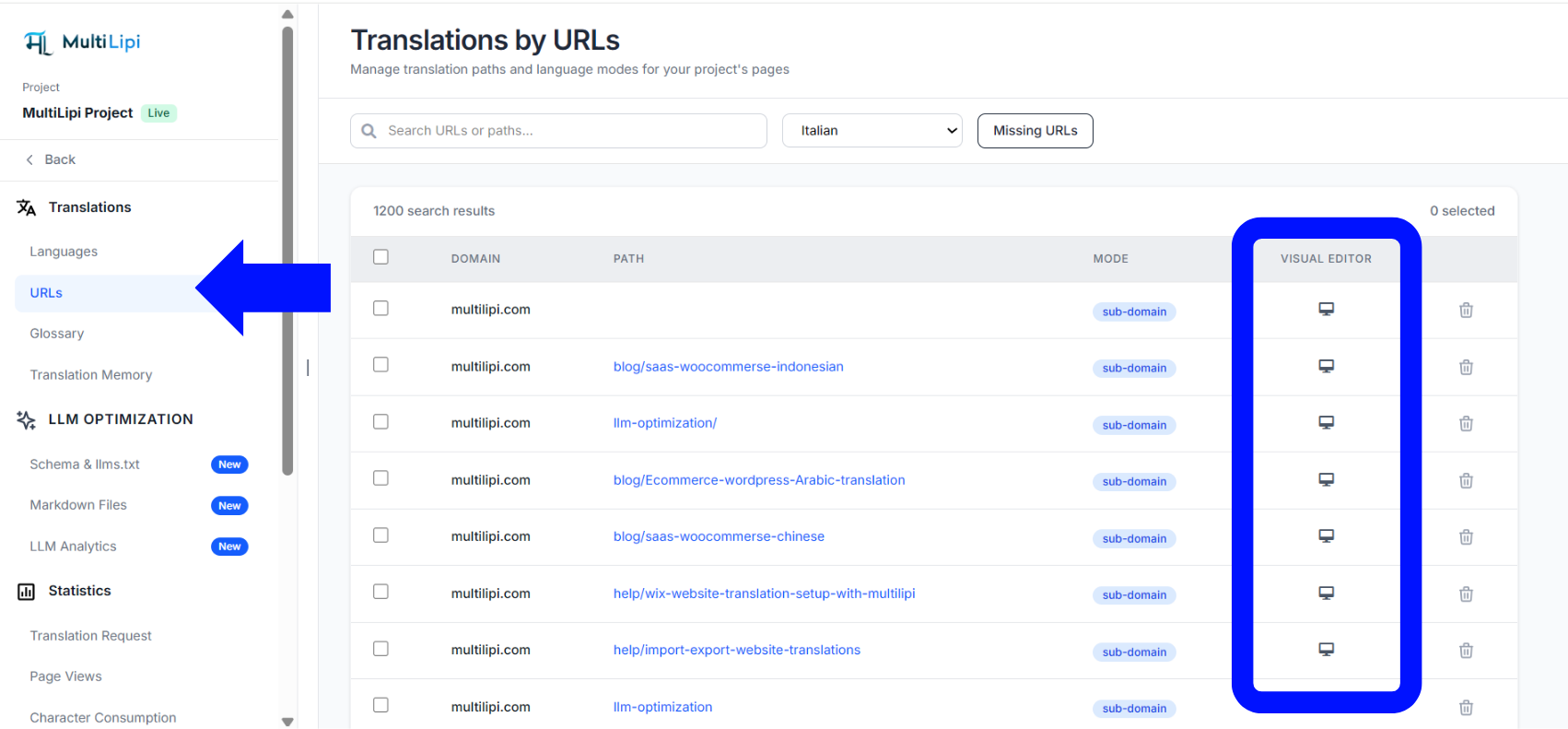
Kirjaudu sisään MultiLipi-koontinäyttö ja valitse verkkosivustoprojektisi. Vasemmanpuoleisessa navigointipaneelissa, alla Käännökset kategoriaan, napsauta URL-osoitteet. Tämä paneeli listaa kaikki verkkosivustosi indeksoidut sivut.
Käynnistä visuaalinen editori
Tunnista sivu, jolla on muokattava grafiikka. Siirrä kohdistin rivin oikeaan reunaan Visuaalinen editori sarakkeen ja napsauta Näyttö-/monitori-ikoni. Tämä avaa live-verkkosivusi muokattavassa overlay-tilassa — ei tarvita selainlaajennusta tai lisäosaa.
Valitse kohdekuva
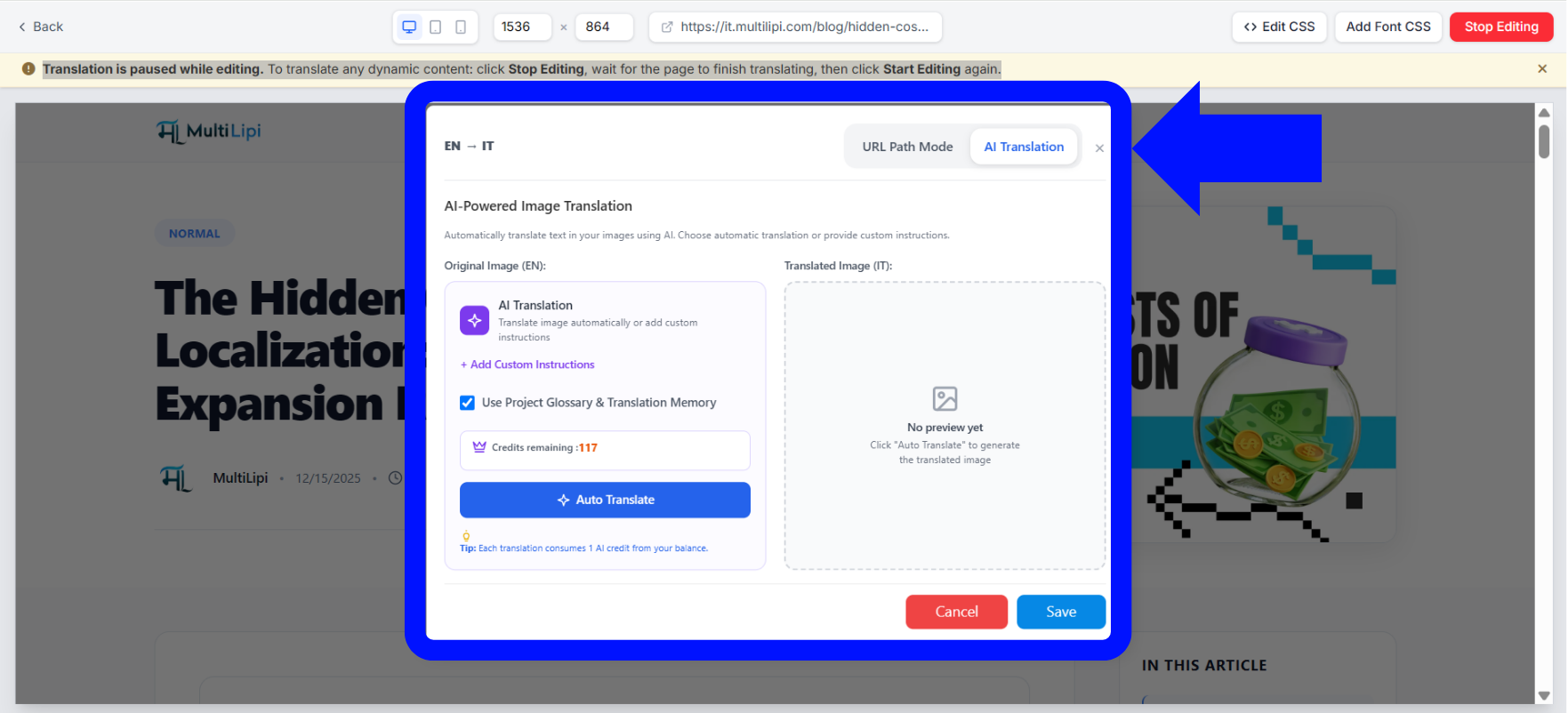
Selaa sivua editorissa ja klikkaa suoraan kuvaa haluat muokata. Kun yllä olevaan resurssiin ilmestyy asetusten päällekkäisyys, varmista, että olet AI-käännöstila URL-polkutilan sijaan.
Määritä kontekstiasetukset ja käynnistä käännös
Modaali nimeltä Tekoälypohjainen kuvien käännös kehottaa sinua konfigurointivaihtoehdoilla:
Lisää mukautettuja ohjeita: Napsauta tätä linkkiä välittääksesi tietyn kontekstin tai tyyliohjeet renderöintimoottorille.
Käytä projektisanastoa ja käännösmuistia: Varmista, että tämä ruutu on valittuna, jotta kuva noudattaa tallennettuja projektisanastoasi – varmistaen brändin yhdenmukaisuuden.
Tarkista saldo: Tarkista kokonaisallokointisi jäljellä olevien hyvitysten tilalohkon vierestä ennen jatkamista.
Napsauta sinistä korostettua Automaattinen käännös painike käsittelyn aloittamiseksi.
Tarkista ja tallenna
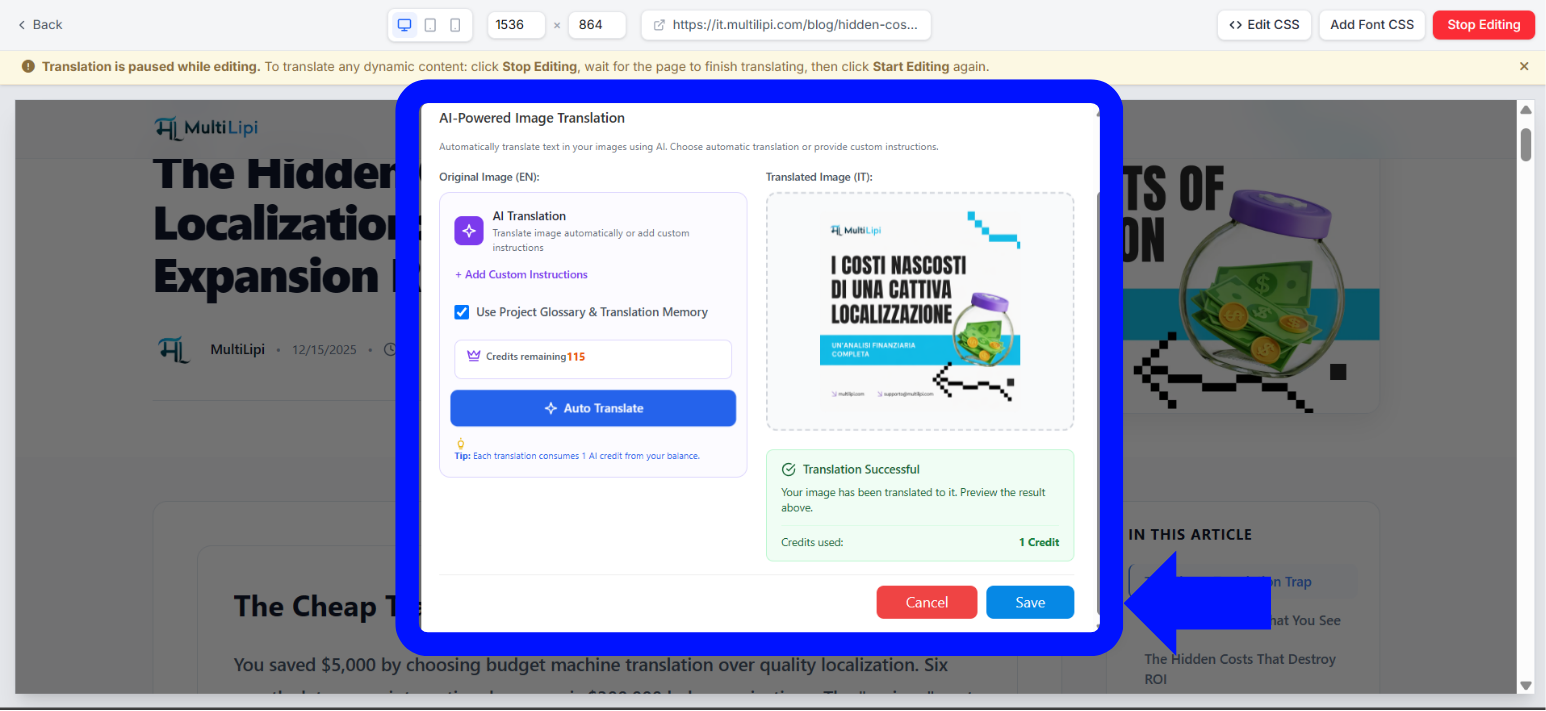
Odota 1–2 minuuttia kun taas tekninen putki käsittelee resursseja. Kun käsittely on valmis, vihreä vahvistuspaneeli lukee Käännös onnistui avautuu, näyttäen esikatselun alla Käännetty kuva sarake päivitetyn Credits used: 1 Credit ilmaisin.
Napsauta sinistä Tallenna painike modaalin alareunassa julkaistaksesi paikallistetun graafisen resurssin sivustollesi. Kansainvälinen yleisösi näkee käännetyn kuvan välittömästi.
Miten kuvahyvitykset ja lisäosat toimivat
Suoraviivainen transaktiomalli, joka skaalautuu tarpeidesi mukaan.
Hyvitysjärjestelmän yleiskatsaus
Ymmärrä, miten krediitit kuluvat ja täydentyvät.
Kulutusmalli: Jokainen yksittäinen onnistunut kuvakäännöspyyntö kuluttaa tasan 1 tekoälyhyvityksen kokonaistilisi saldosta.
Suunnitelman sisällöt: Oletusluottovarauksesi määräytyy aktiivisen tilaustasosi mukaan. Huippuluokan projektitasot saavat suurempia natiiviluottovarauksia kunkin laskutusjakson alussa.
Lisäkrediittien ostaminen: Jos tiimisi kuluttaa allokointisi kesken laskutusjakson, siirry tiliprofiilisi asetussivulle pääkoontinäytön sisällä ostaaksesi räätälöityjä kuvahyvityslisäosia välittömästi.
Haluatko tutustua, mikä suunnitelma sisältää parhaan krediittimäärän tiimisi koolle? Käy MultiLipin hinnoittelusivu , vertaile tasoja ja löydä sopiva ratkaisu lokalisointitarpeisiisi.
Pro-vihje: Tulevien graafisten päivitysten käsittely
Käännösmuisti pitää sinut automaattisesti synkronoituna.
Yksi MultiLipin arkkitehtuurin merkittävimmistä eduista on sen tapa käsitellä mediakirjastosi tulevat päivitykset. Jos suunnittelutiimisi päivittää alkuperäistä grafiikkaa — esimerkiksi muuttamalla tuotekuvaa tai päivittämällä mainoshintaa pääenglanninkielisessä aineistossasi — MultiLipi havaitsee muutoksen automaattisesti.
Aiemmin kääntämäsi tekstiasettelut tallennetaan turvallisesti tilisi Käännösmuisti, mikä tarkoittaa, että sinun ei tarvitse manuaalisesti kääntää resurssia uudelleen tyhjästä. Järjestelmä yksinkertaisesti päällystää hyväksytyn lokalisoidun tekstisi juuri ladattuun graafiseen asetteluun varmistaen, että kansainväliset aliverkkotunnuksesi pysyvät täydellisesti synkronoituna minimaalisella vaivalla.
Liittyvät työkalut ja resurssit
Tekoälykuvien käännös toimii parhaiten osana täydellistä lokalisointistrategiaa. Tässä on lisäresursseja, jotka auttavat sinua rakentamaan todella globaalin verkkosivuston:
Aloita visuaalisten resurssiesi paikallistaminen tänään
Poista viimeinen este täydellisesti lokalisoidulle verkkosivustolle.
Visuaalinen sisältö usein ratkaisee, tekeekö tai rikkoo se käyttäjän ensivaikutelman digitaalisesta läsnäolostasi. Varmistamalla, että kaaviosi, merkkisi ja mainosotsikkosi puhuvat asiakkaasi äidinkieltä, poistat viimeisen esteen aidosti globaalilta brändikokemukselta.
Palaa työtilaasi, avaa URL-paneeli, ja tuo visuaaliset elementtisi monikieliseen aikakauteen tänään. Jos olet uusi MultiLipin käyttäjä, tutustu verkkokaupan lokalisointiratkaisut tai tarkista UKK-sivu yleisiä asennuskysymyksiä varten.
Tarvitsetko apua? Jos kohtaat muotoiluongelmia erittäin monimutkaisissa grafiikoissa tai sinun on ostettava yritystason hyvityksiä työtilaasi varten, ota yhteyttä MultiLipin tukeen määrittääksesi alustasi asetukset. Insinööritiimimme on valmis auttamaan.