
Tekoälyn käännösmallit ovat tehokkaita, mutta ne voivat olla liian luova . Sanasto toimii "Suojakaiteen rakentaja," pakottaen käännöskoneen noudattamaan juuri sinun brändisääntöjäsi. Olipa kyse sitten varmistamisesta "Apple" pysyy brändinimenä (eikä hedelmänä) tai oikeudellisten vastuuvapauslausekkeiden mukaisesti MultiLipi-sanastonhaltija antaa sinulle täydellisen hallinnan.
Tämä opas kattaa kaksi tapaa määritellä nämä säännöt: Manuaalinen syöttö (tarkkuus) ja CSV:n nieleminen (massa) .
Tiukan terminologian johdonmukaisuuden valvonta
Sanastot syrjäyttävät tekoälyn käännöspäätökset brändin eheyden säilyttämiseksi. Käytä niitä yritysten nimissä, tuote-SKU:issa, juridisissa termeissä, teknisessä ammattikielessä ja arvokkaissa SEO-avainsanoissa, jotka on pysyttävä johdonmukaisina kaikilla kielillä.
Termipohjan käyttö
Sanasto on globaali ympäristö, joka koskee kaikkia projektejasi.
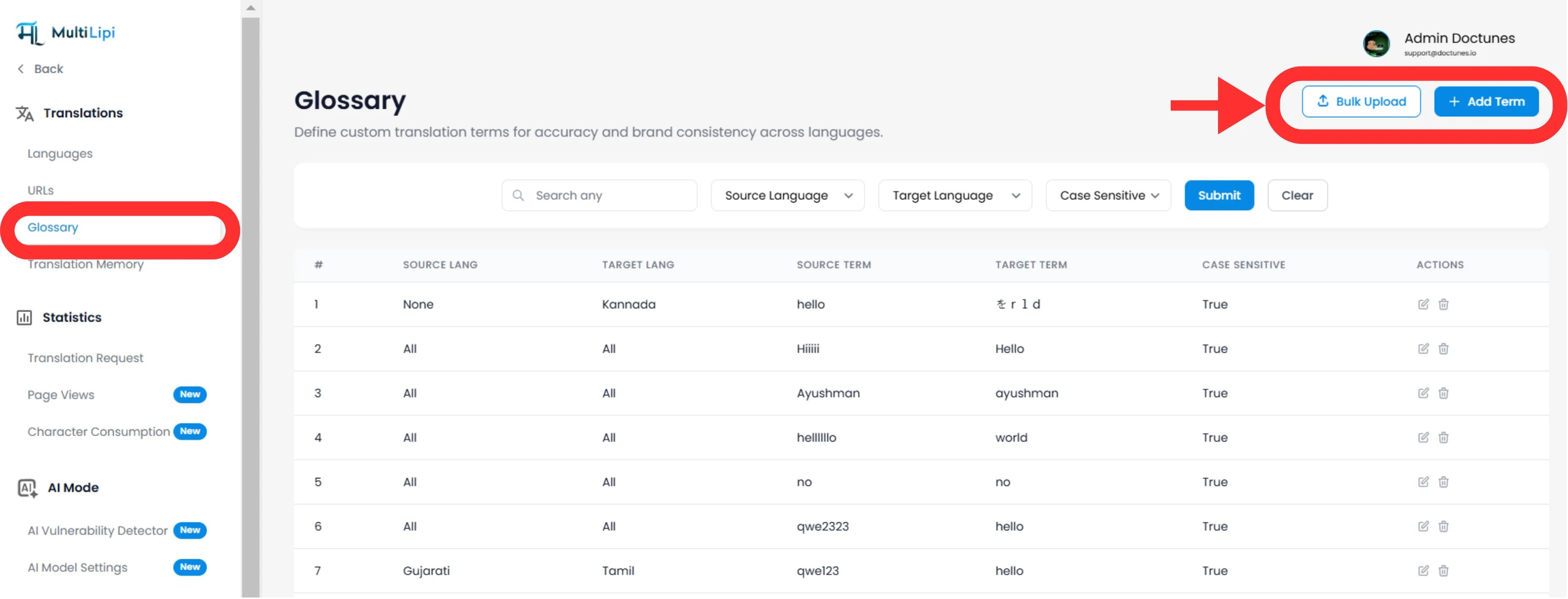
Navigoi: Laajenna MultiLipi-kojelaudastasi Käännökset valikko sivupalkissa.
Valitse: Klikkaa Sanasto .
Näkymä: Näet haettavan taulukon kaikista aktiivisista säännöistä, niiden kielipareista ja kirjainkoon herkkyyden tilasta.
Menetelmä 1: Tarkkuussääntöjen määrittely (manuaalinen)
Paras vaihtoehto:
Brändinimien, tuotepakettien ja tiettyjen markkinointisloganien lukitseminen.
Aloita
Klikkaa Uusi painikkeella oikeassa yläkulmassa.
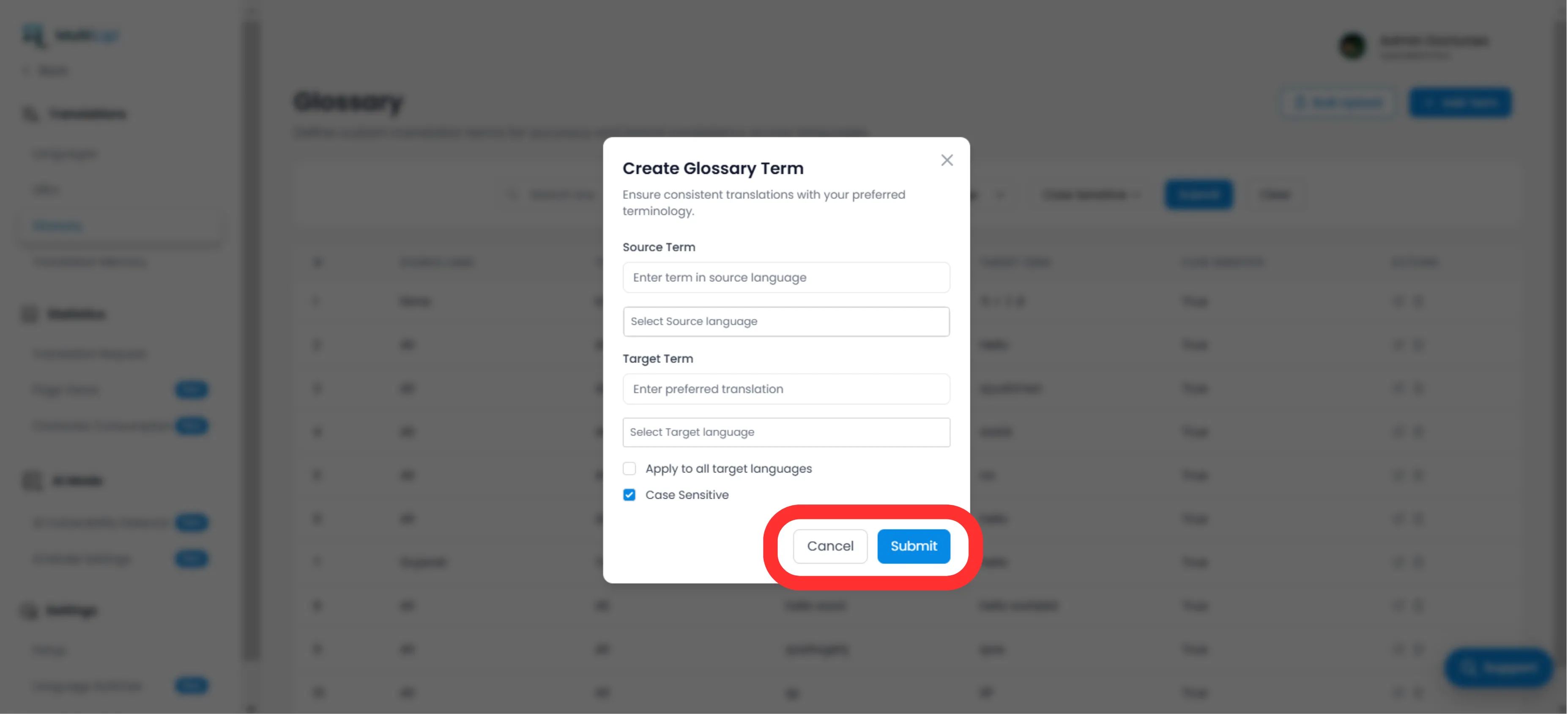
Määrittele sääntö
Lähdetermi
Tarkka sana tai lause alkuperäiskielelläsi (esim. "CloudDrive" ).
Kohdetermi
Pakollinen käännös (esim. "CloudDrive" - pitää se englanniksi, tai "Le CloudDrive" ).
Kielen laajuus
Erityiset
Hae vain EN → FR .
Globaali
Select "Kaikki kielet" Lukitakseen brändin maailmanlaajuisesti.
Kirjainkoon herkkyys
Käytössä
Ottelut "Apple" mutta jättää huomiotta "Apple" . Välttämätön yleisille sanoille, jotka ovat myös erisnimiä.
Käyttöönotto
Klikkaa Alistua . Sääntö on Heti työnnetty käännösmoottoriin ja koskee kaikkia tulevia käännöksiä.
Menetelmä 2: Massasyöttö (CSV-lataus)
Paras vaihtoehto:
Vanhojen termipohjien, oikeudellisten sanakirjojen tai verkkokauppatuotelistojen siirtäminen.
Jos olet Satoja termejä , älä syötä niitä manuaalisesti. Käytä CSV-tuontityökalu .
Valmistele tietosi
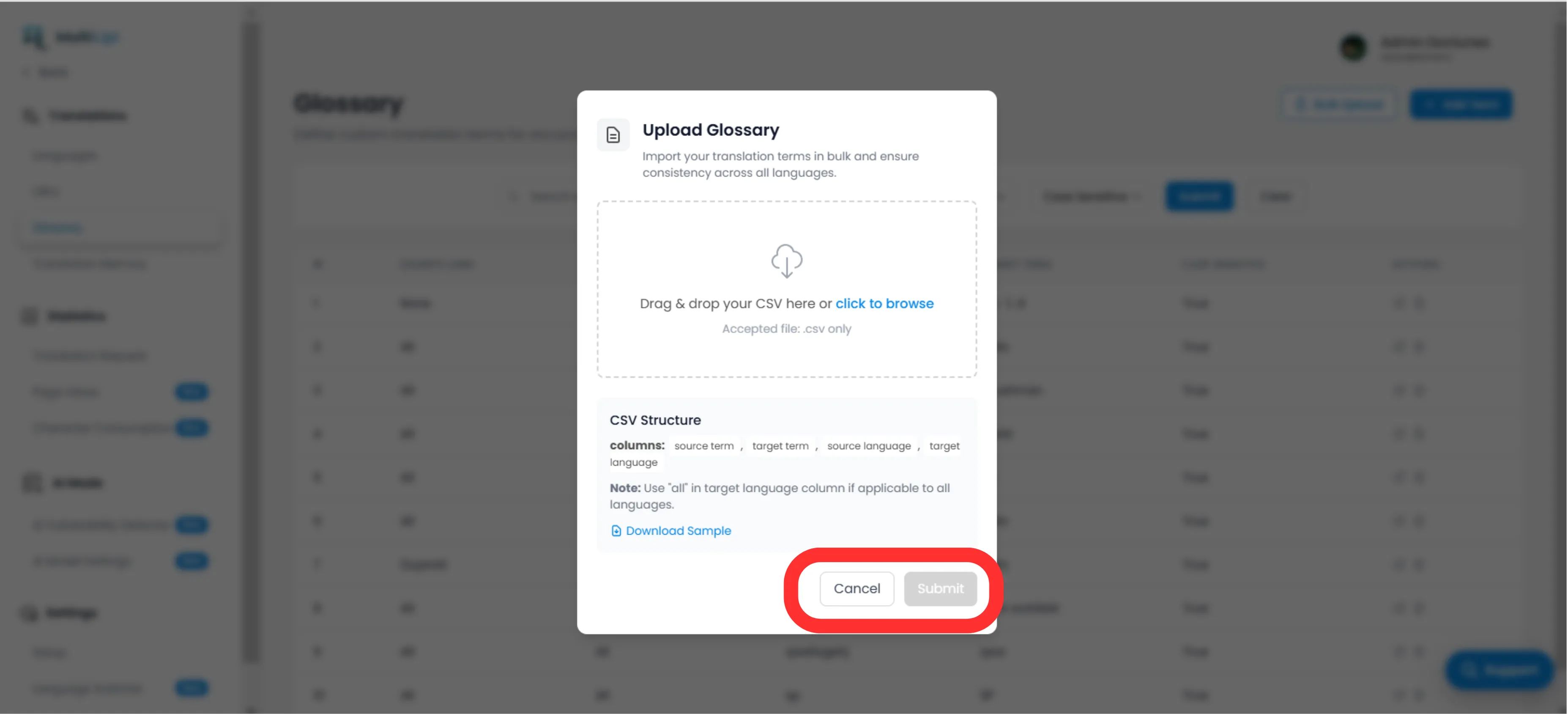
Luo CSV-tiedosto seuraavalla otsikkorakenteella:
source_term, target_term, source_language, target_language Huomautus
Käyttää ISO-koodit kielille (esim. en , fr , de ). Käyttö kaikki Globaaleja sääntöjä varten.
Lataa
Klikkaa Lataa painikkeen kanssa sanastopaneelissa.
Kartta ja Validointi
Valitse tiedostosi. Järjestelmä jäsentää rivit ja merkitse mahdolliset muotoiluvirheet.
Toteuta
Klikkaa Alistua Säännöt siirretään aktiiviseen Term Base -järjestelmään.
Strategiset parhaat käytännöt
Lukitse brändisi
Ensimmäinen sääntö, jonka sinun tulisi laatia, on Yrityksen nimi . Aseta tavoite identtinen lähteen kanssa ja soveltaa sitä Kaikki kielet .
SEO-avainsanat
Jos kohdistat tiettyyn suurivolyymi avainsana Saksassa (esim. "Kätevä" Sijasta "Mobiltelefon" ), luo sanastosäännön, joka pakottaa veturin käyttämään suuremman liikenteen termiä.
Pidä se lyhyenä
Sanasto toimii parhaiten 1–3 sanan fraasit . Älä käytä niitä kokonaisissa lauseissa; käytä Käännösmuisti tai Visuaalinen editori Siitä.
Valmiina valvomaan brändin johdonmukaisuutta? Avaa sanastonhaltija Ja ala määritellä käännöskaitteesi jo tänään.