

MultiLipi:n käyttöönotto Shopify-alustalla
Muuta myymäläsi globaaliksi myyntimoottoriksi.
Shopify on rakennettu kaupankäyntiä varten, mutta todellinen globaali skaala vaatii enemmän kuin pelkkää valuutanmuunnosta. Integroimalla MultiLipi-palvelun otat käyttöön Neuraalisen käännösinfrastruktuurin joka lokalisoi koko myymäläsi – tuotekuvauksista kassavirtoihin – samalla kun se käsittelee automaattisesti monimutkaiset SEO-signaalit, joita tarvitaan tuotteidesi sijoittumiseen ulkomaisilla markkinoilla.
Tämä opas kuvaa integraatioprosessin käyttämällä Shopifyn theme.liquid arkkitehtuuri.
1. Käyttöönoton edellytykset
Varmista ennen teeman muokkaamista, että sinulla on seuraavat tunnisteet:
MultiLipi API-avain
Löydät tämän ohjauspaneelista kohdasta Asetukset > Yleiset.
Shopify-järjestelmänvalvojan käyttöoikeudet
Sinulla on oltava oikeudet muokata teemoja.
2. Vaihe 1: Käytä teeman arkkitehtuuria
Lisäämme käännöskoneen suoraan kauppasi globaaliin asettelutiedostoon varmistaaksemme, että se latautuu jokaiselle sivulle (Tuotteet, Kokoelmat, Sivut).
- 1
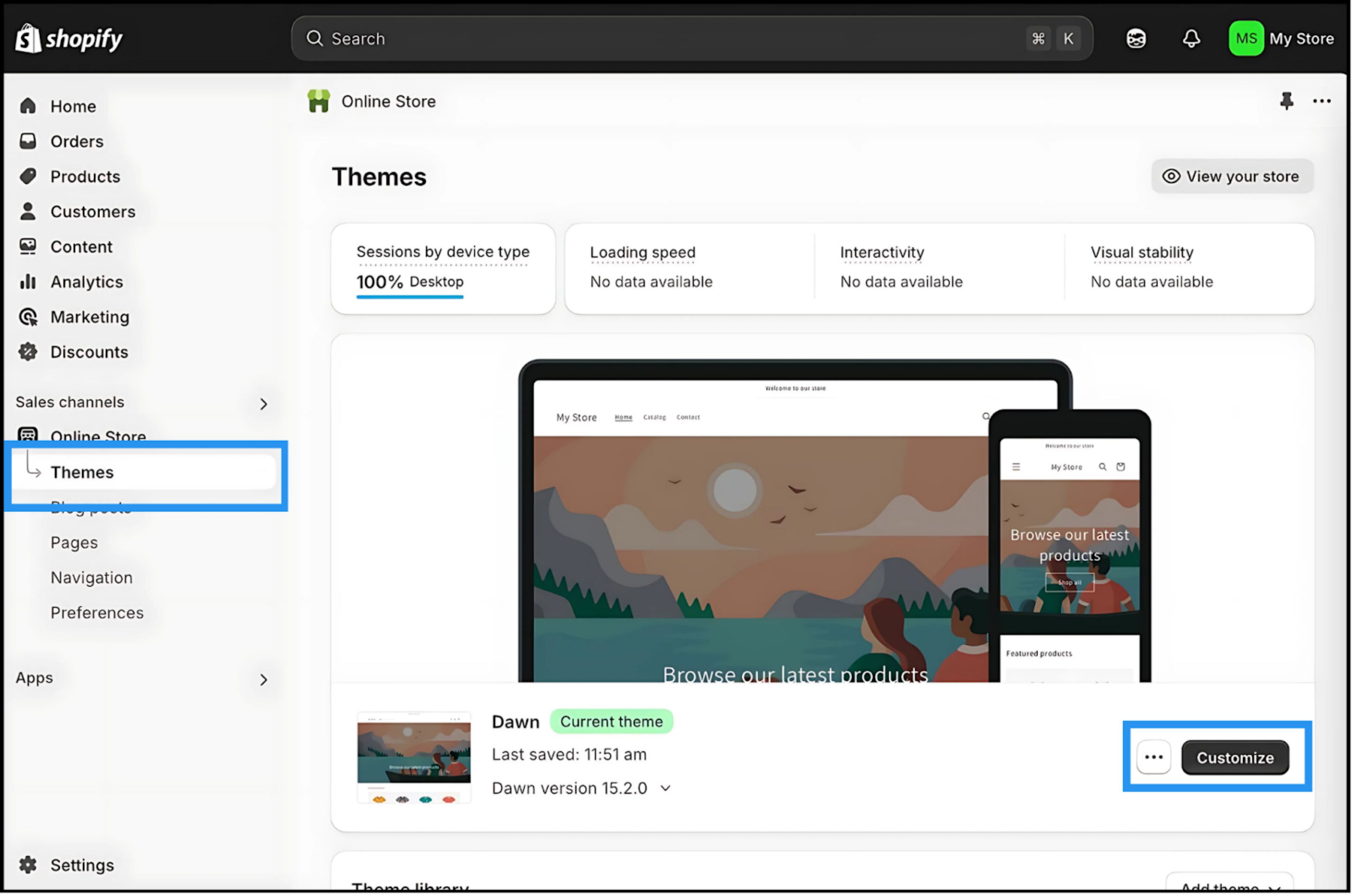
Kirjaudu sisään Shopify-järjestelmänvalvontapaneeli.
- 2
Siirry Verkkokauppa > Teemat.
- 3
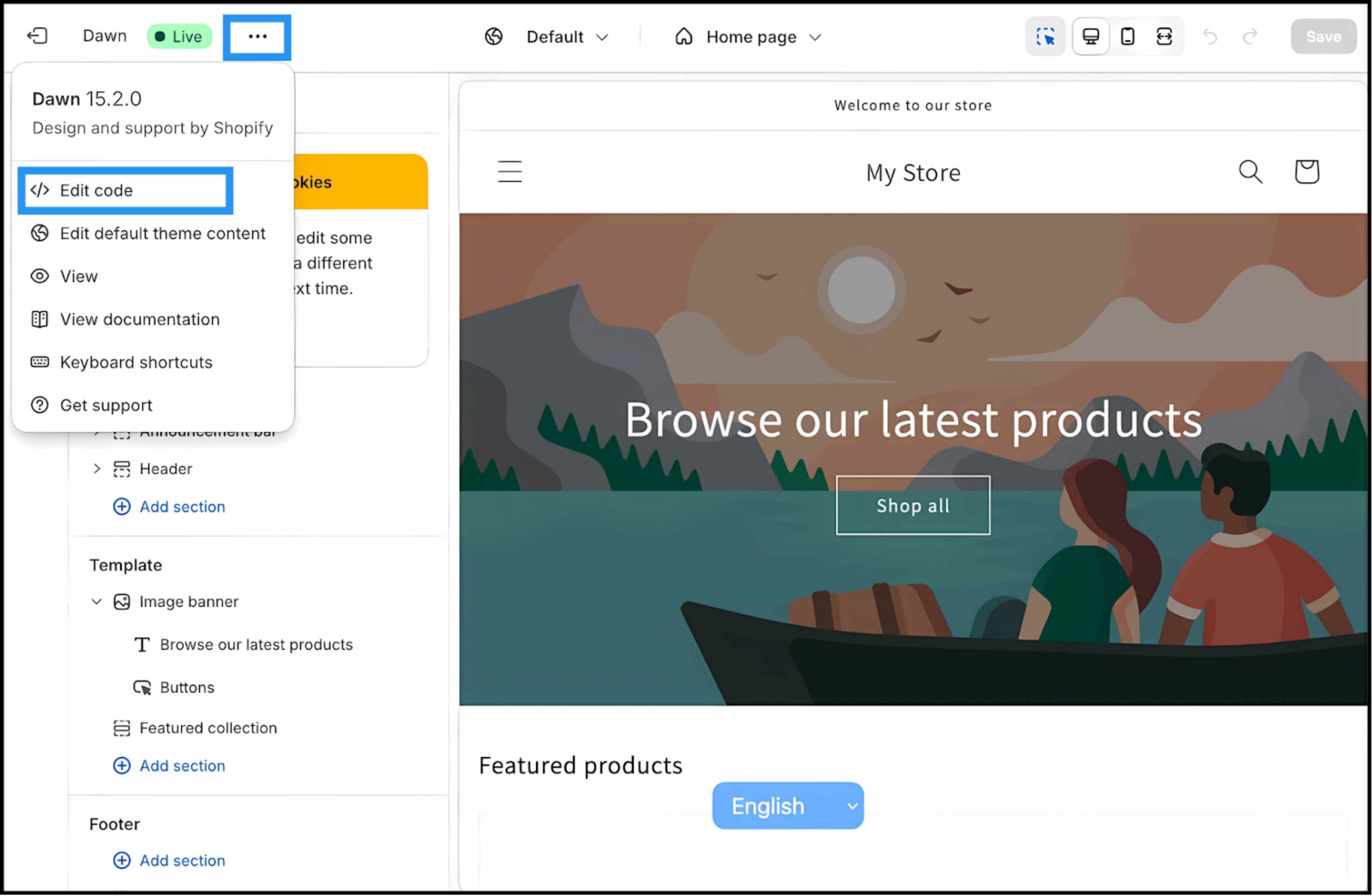
Etsi aktiivinen teemasi ("Live") ja napsauta Kolme pistettä (⋮) -painiketta.
- 4
Valitse Muokkaa koodia.
3. Vaihe 2: Syötä infrastruktuuriskripti
- 1
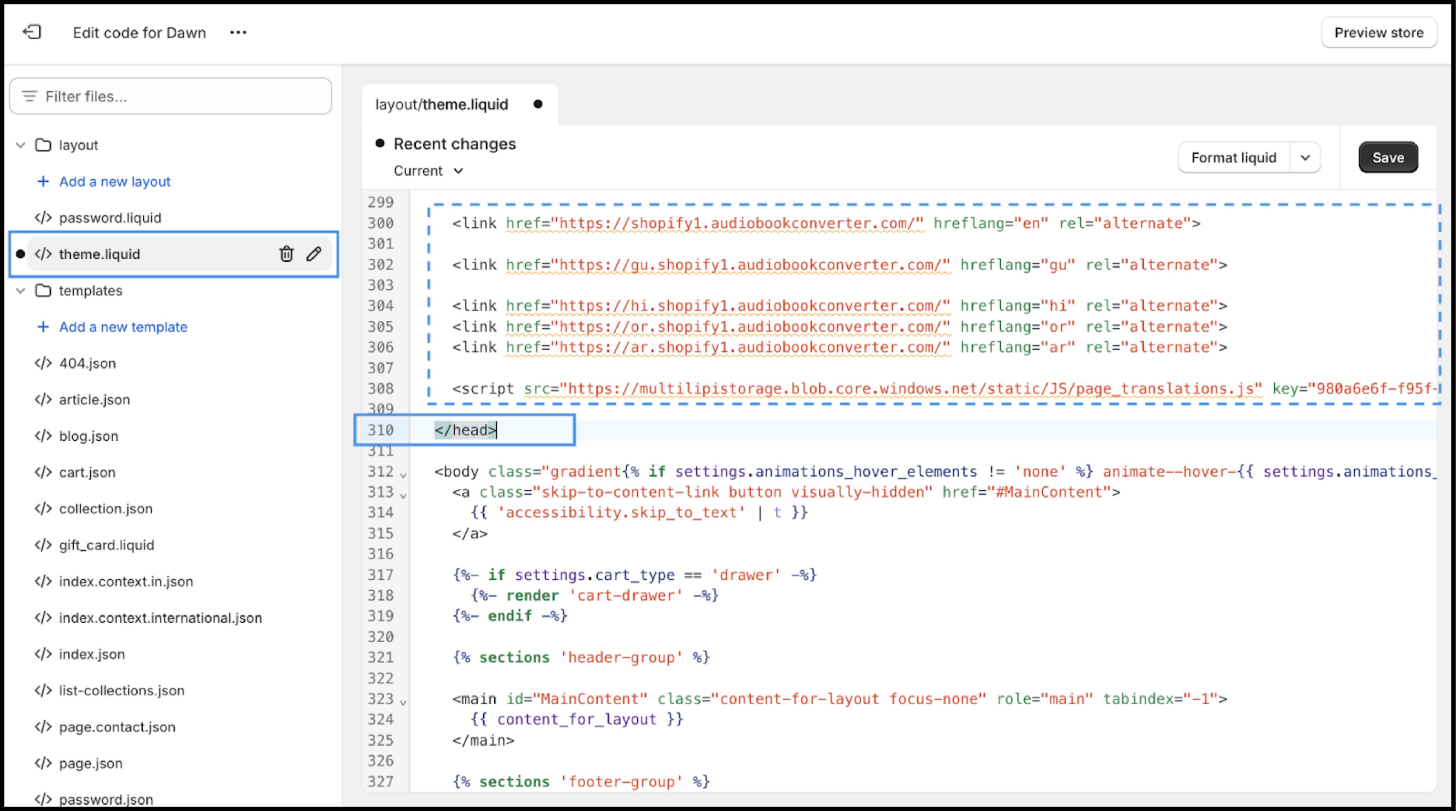
Etsi tiedostohakemistosta (vasen sivupalkki) Asettelu kansio.
- 2
Avaa
theme.liquid. Tämä on myymäläsi päämallipohja. - 3
Vieritä alas löytääksesi sulkevan
</head>tunniste.
Toiminto: Liitä yhteyskoodi
Liitä seuraava yhteyskoodi välittömästi yläpuolella kohtaan </head> tagi:
<script
  src="https://multilipistorage.blob.core.windows.net/static/js/page_translations.js"
  key="YOUR_API_KEY_HERE"
></script>
⚠️ Kriittinen määritys
- •Korvaa
YOUR_API_KEY_HEREtodellisella API-avaimella, jonka olet kopioinut MultiLipi-koontinäytöstäsi. - •Napsauta Tallenna oikeassa yläkulmassa.
4. Vaihe 3: Validointi ja lanseeraus
Kun tallennus on tehty, infrastruktuuri on käytössä.
Avaa myymälä
Siirry live-verkkosivustosi URL-osoitteeseen.
Tarkista käyttöliittymä
Sinun pitäisi nähdä kielenvaihtaja kiinnitettynä vasempaan alakulmaan (oletussijainti).
Testaa käännöstä
Vaihda kohdekieleen. Varmista, että tuotteiden otsikot, kuvaukset ja "Lisää ostoskoriin" -painikkeet kääntyvät välittömästi.
Vianmääritysprotokolla
- •Etkö näe vaihtajaa? Varmista, että skripti on sulkevan
</head>tagin yläpuolella, ei sen alapuolella. - •Välimuisti: Jos käytät kolmannen osapuolen välimuistisovellusta, tyhjennä välimuisti.
- •Inkognito: Testaa inkognito-/yksityisessä ikkunassa ohittaaksesi paikallisen selaimen välimuistin.
5. Seuraavat vaiheet: Kaupan optimointi
Nyt kun moottori on käynnissä, optimoi se myyntiä varten:
Lukitse brändisi
Käytä sanastoa estääksesi tuotenimien tai tavaramerkittyjen termien kirjaimellisen kääntämisen.
SEO-aktivointi
Varmista, että "Slug Translation" on käytössä MultiLipi-asetuksissasi, jotta tuotteidesi URL-osoitteet (esim. /products/red-shoes) indeksoituvat avainsanoiksi kohdemarkkinoilla (esim. /products/zapatos-rojos).
Kassalle kohdistaminen
Varmista, että Shopify-kassasi asetukset sallivat lokalisoidut kentät, jos käytät Shopify Plussaa.